App Privacy details configuration
Apple now requires you to disclose user data that your app is collecting, and the purpose of this collection. You will need to provide these information when submitting a new app or and app update starting December 8th, 2020.
Since the Equativ Instream SDK collects some user data, you MUST declare in addition to the data collected by your app!
You can retrieve the data collected by the Equativ Instream SDK directly using the Xcode Privacy Report or manually by reading the documentation below.
Table of contents
- Xcode Privacy Report
- Data usage summary
-
iTunes Connect configuration
- Step 1: get started with App Privacy
- Step 2: data collection
- Step 3: types of data
- Step 4: ‘Precise location’ setup (if applicable)
- Step 5: ‘Coarse location’ setup
- Step 6: ‘User ID’ setup (if applicable)
- Step 7: ‘Device ID’ setup
- Step 8: ‘Advertising Data’ setup
- Step 9: ‘Advertising Data’ setup
- Step 10: publishing
Xcode Privacy Report
Starting with Xcode 15, it is possible to generate a privacy report of your app. This privacy report can be useful to fill the privacy form in iTunes Connect when submitting your app.
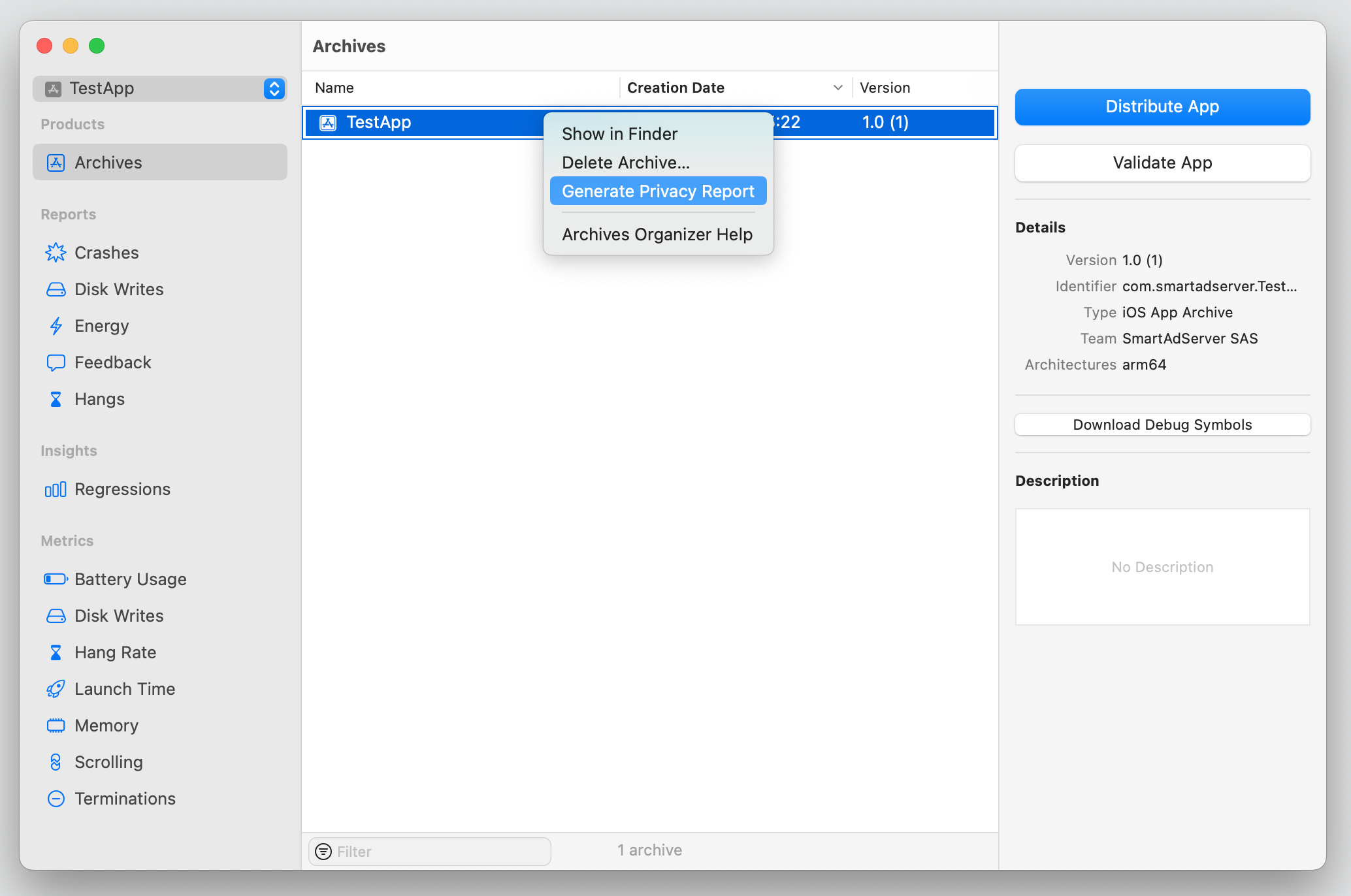
To generate a privacy report, build & archive your app, then right click the newly created build and choose Generate Privacy Report.
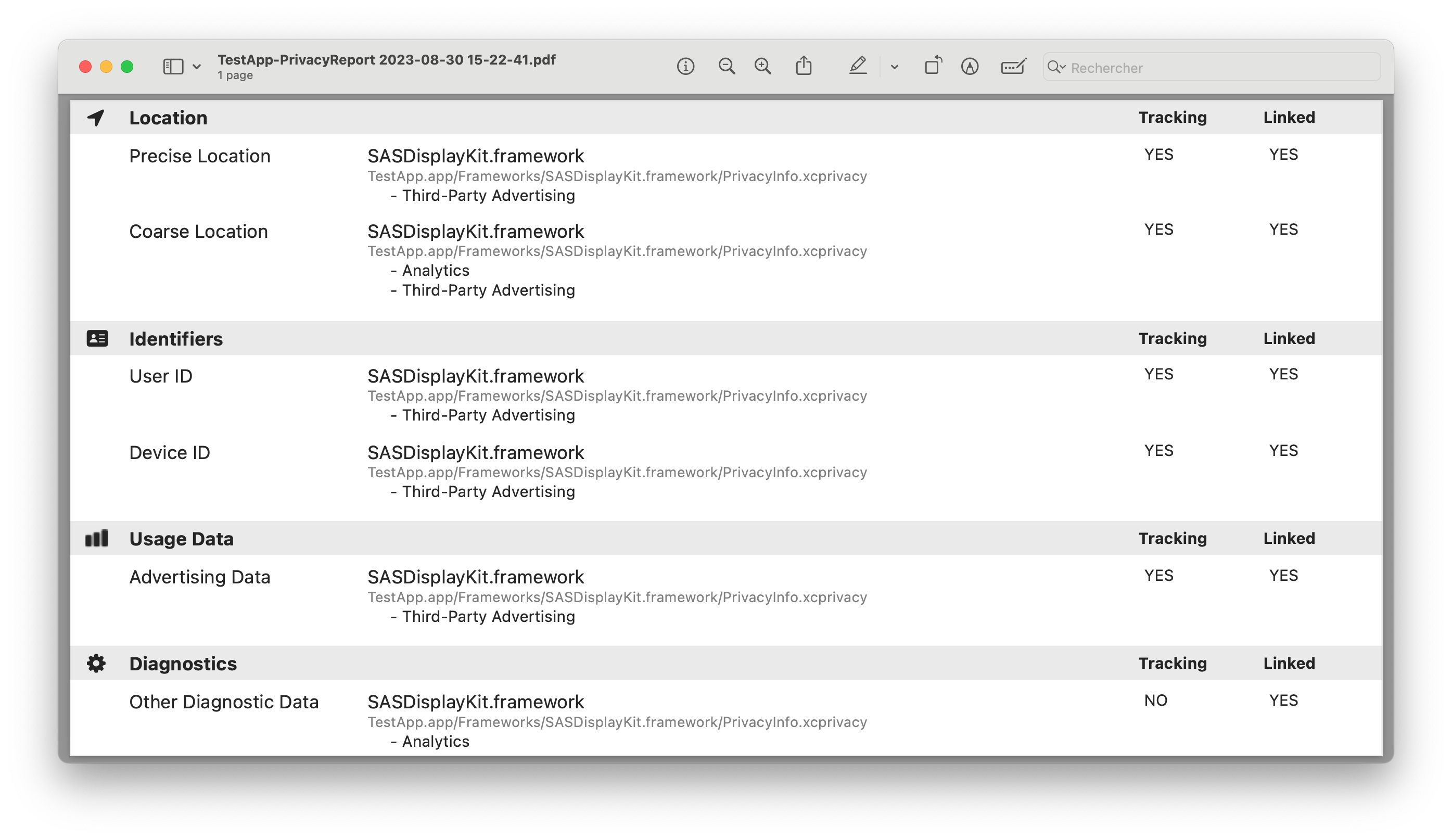
The privacy report will automatically includes collected data & usage purposes of the Equativ Instream SDK if you are using the version 7.23.0 or above.
Data usage summary
This section summarize all data collected and processed by the Equativ Instream SDK. You can use it to fill iTunes Connect privacy page.
You can find the definition of all the data and purpose in Apple documentation.
| Data type | Status | Data usage purposes |
|---|---|---|
| Location | ||
| Precise Location |
optional (only necessary if allowAutomaticLocationDetection is enabled) |
Third-Party Advertising |
| Coarse Location | REQUIRED | Third-Party Advertising Analytics |
| Identifiers | ||
| User ID |
optional (only necessary if you provide your own identifier using customIdentifier) |
Third-Party Advertising |
| Device ID | REQUIRED | Third-Party Advertising |
| Usage data | ||
| Advertising Data | REQUIRED | Third-Party Advertising |
| Diagnostics | ||
| Other Diagnostic Data | REQUIRED | Analytics |
For all type of user data, Apple will ask you to answer two questions. This is a summary of the answers when using the Equativ Instream SDK.
| Data type | Linked to user | Used for tracking |
|---|---|---|
| Location | ||
| Precise Location | yes | yes |
| Coarse Location | yes | yes |
| Identifiers | ||
| User ID | yes | yes |
| Device ID | yes | yes |
| Usage data | ||
| Advertising Data | yes | yes |
| Usage data | ||
| Diagnostics | yes | no |
If you need more details on how to use iTunes Connect privacy page, check the iTunes Connect configuration section.
iTunes Connect configuration
This is a detailed guide on how to configure the privacy page of your app in iTunes Connect when using the Equativ Instream SDK.
The following information are only valid for the Equativ Instream SDK: you will also need to answer these questions for all your others third party SDKs.
Step 1: get started with App Privacy
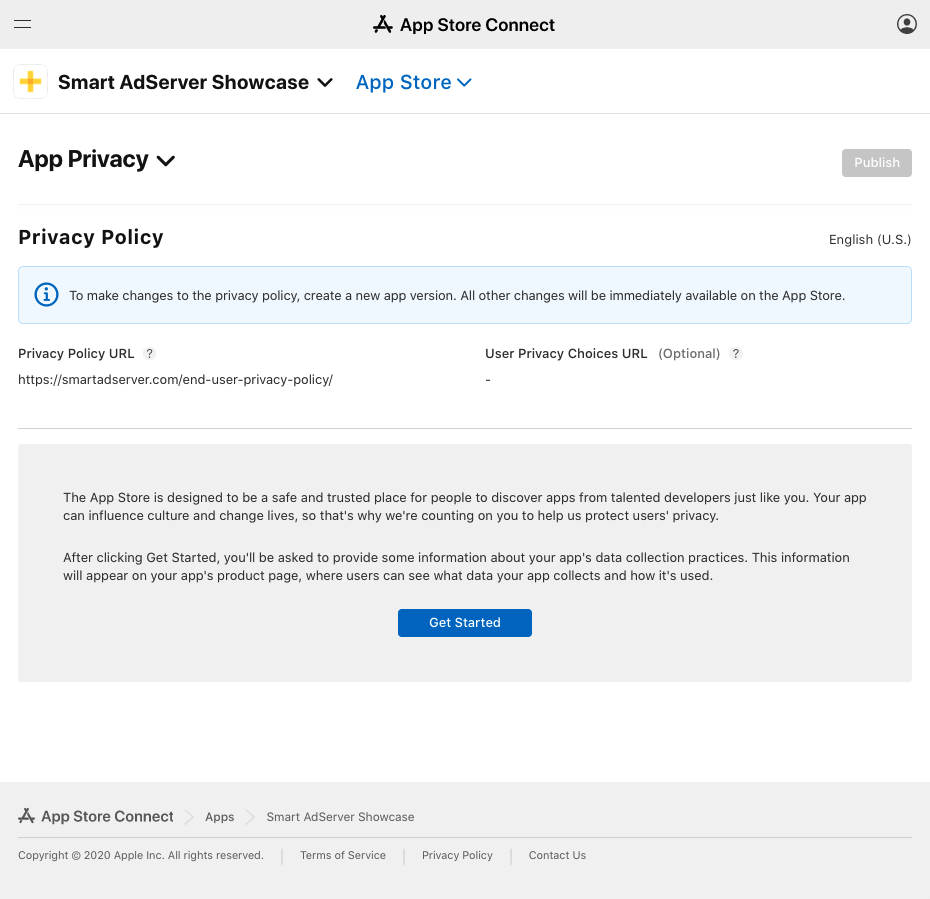
Locate the App Privacy page in iTunes Connect for your app, then click on Getting Started.
Step 2: data collection
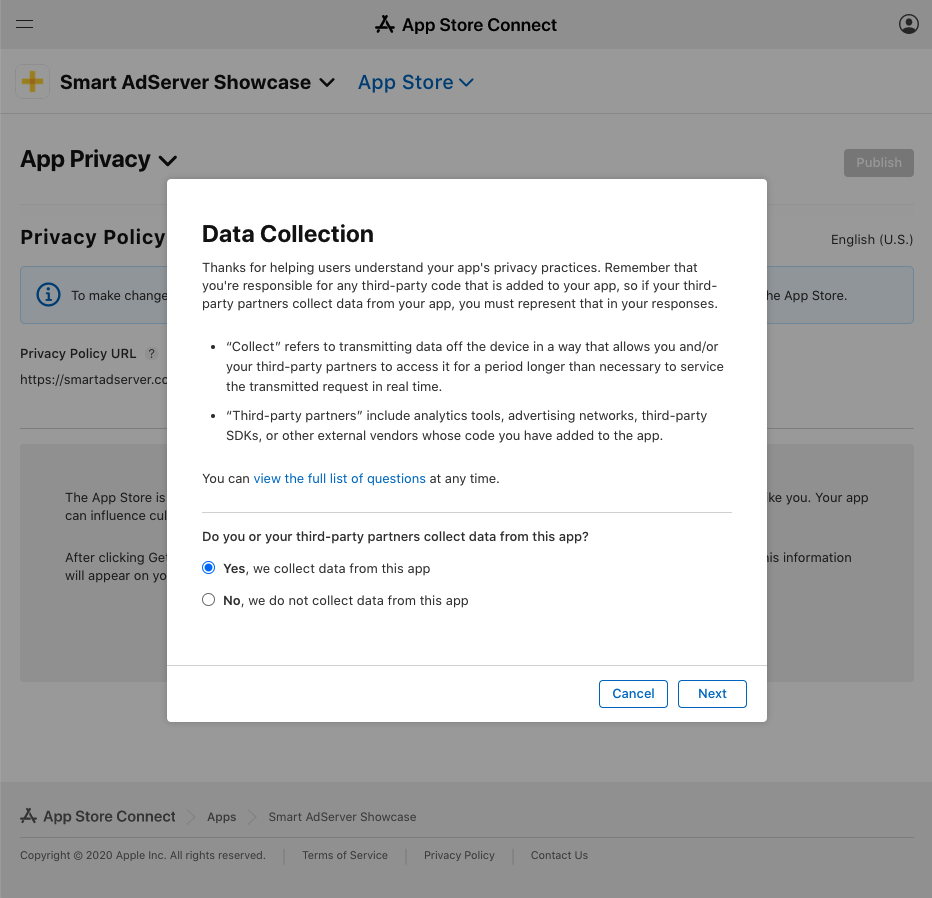
When asked if your app or third party SDK collect any user data, answer Yes, we collect user data from this app.
Step 3: types of data
When prompted with a list of user data collected, select at least:
- Coarse Location
- Device ID
- Advertising Data
- Other Diagnostic Data
You should also select Precise Location if allowAutomaticLocationDetection is enabled in your app and User ID if you provide any user based identifier using customIdentifier.
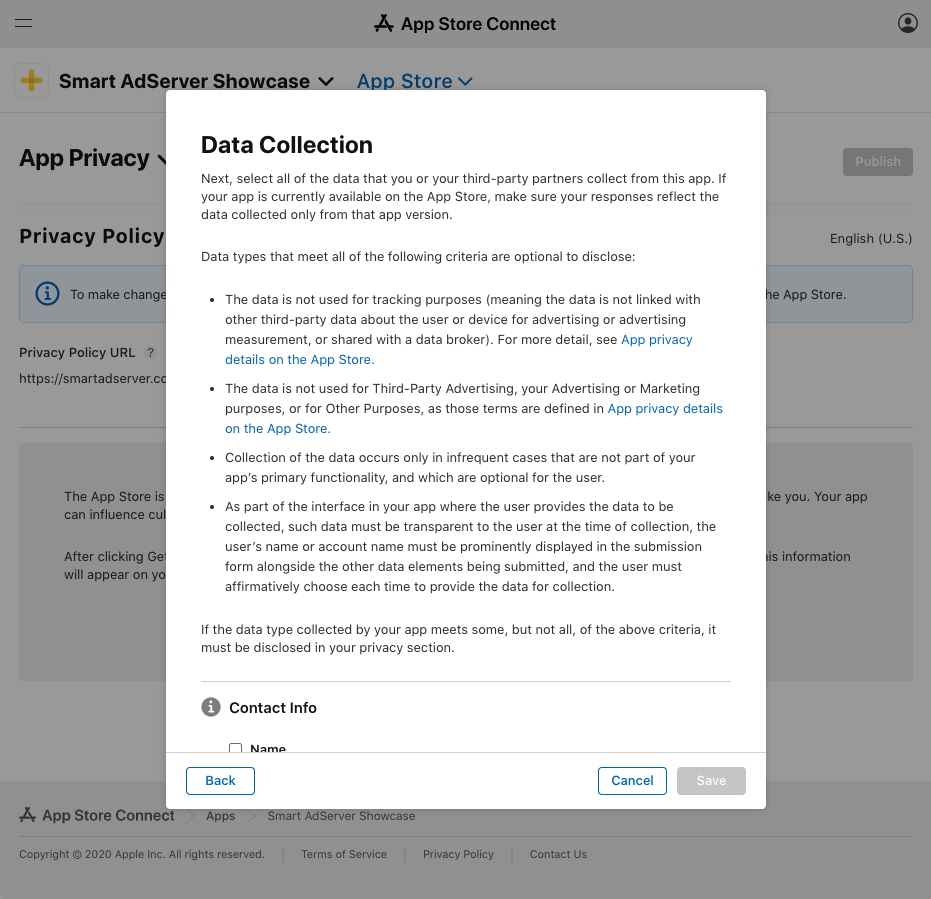
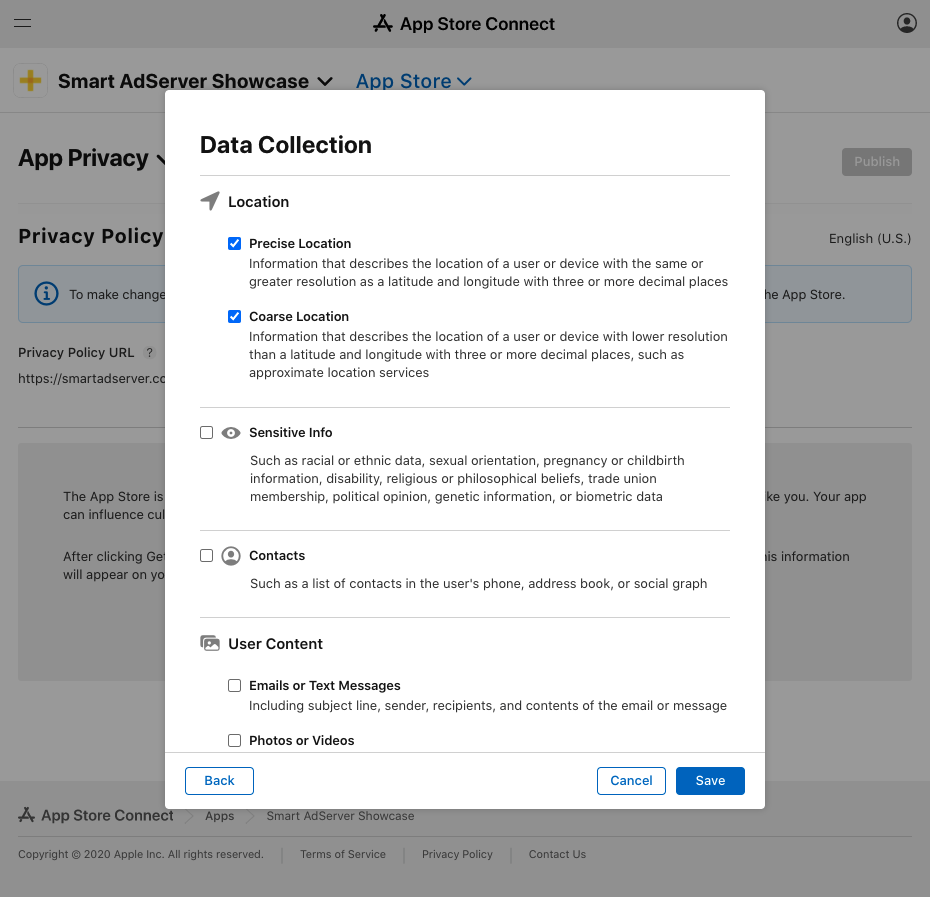
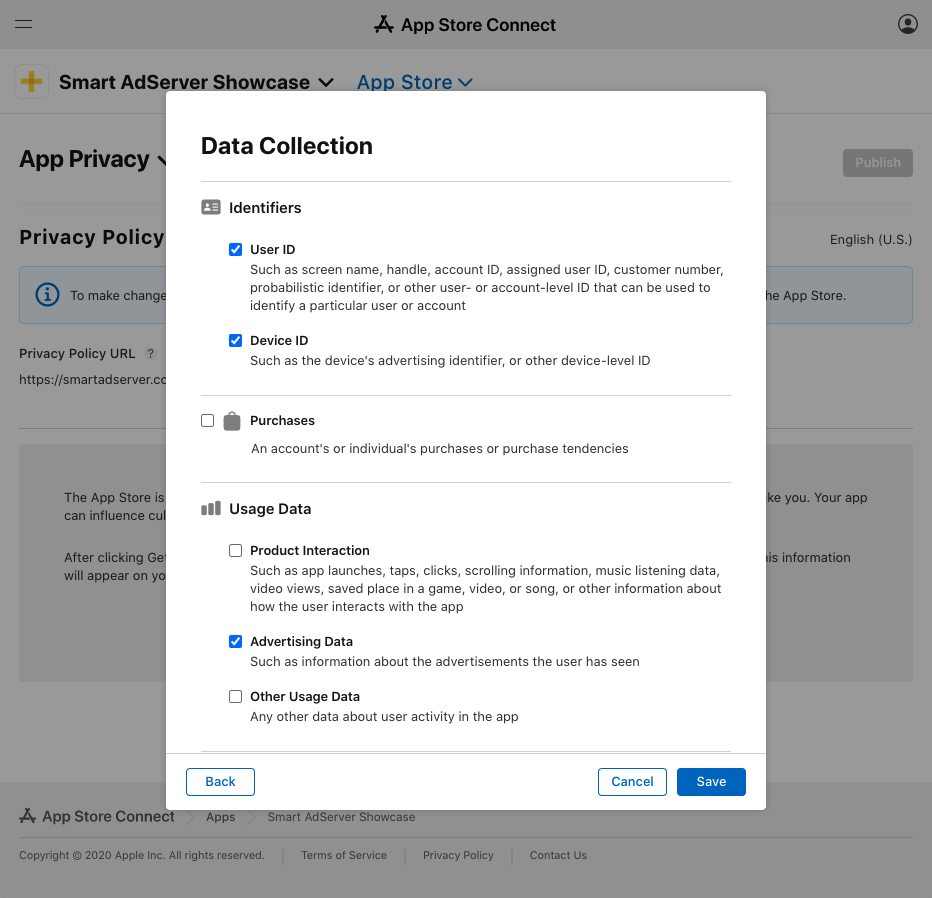
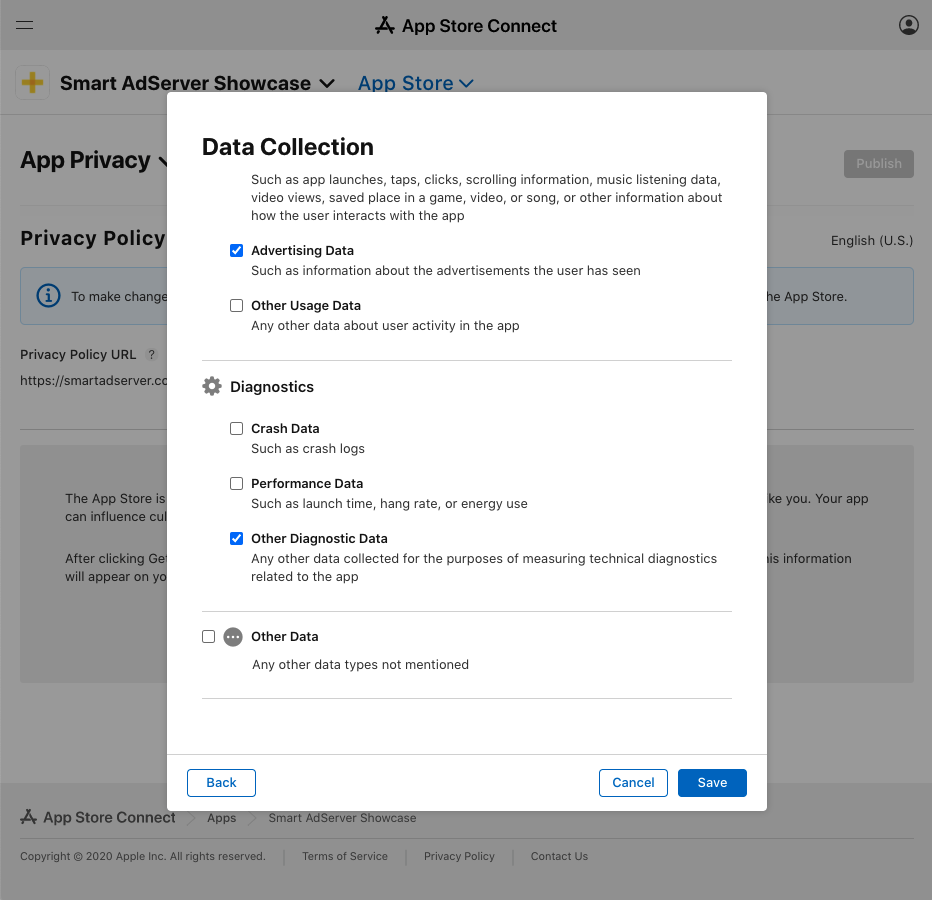
You will then see a screen asking for more information for all selected user data type.
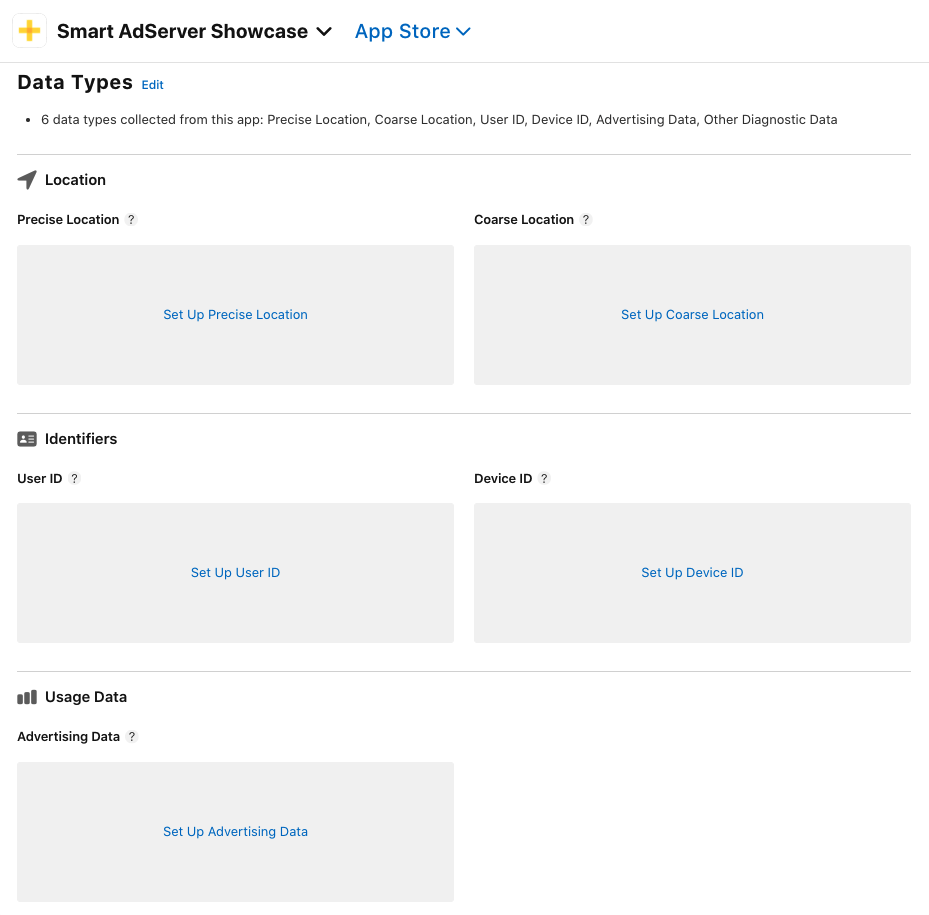
Step 4: ‘Precise location’ setup (if applicable)
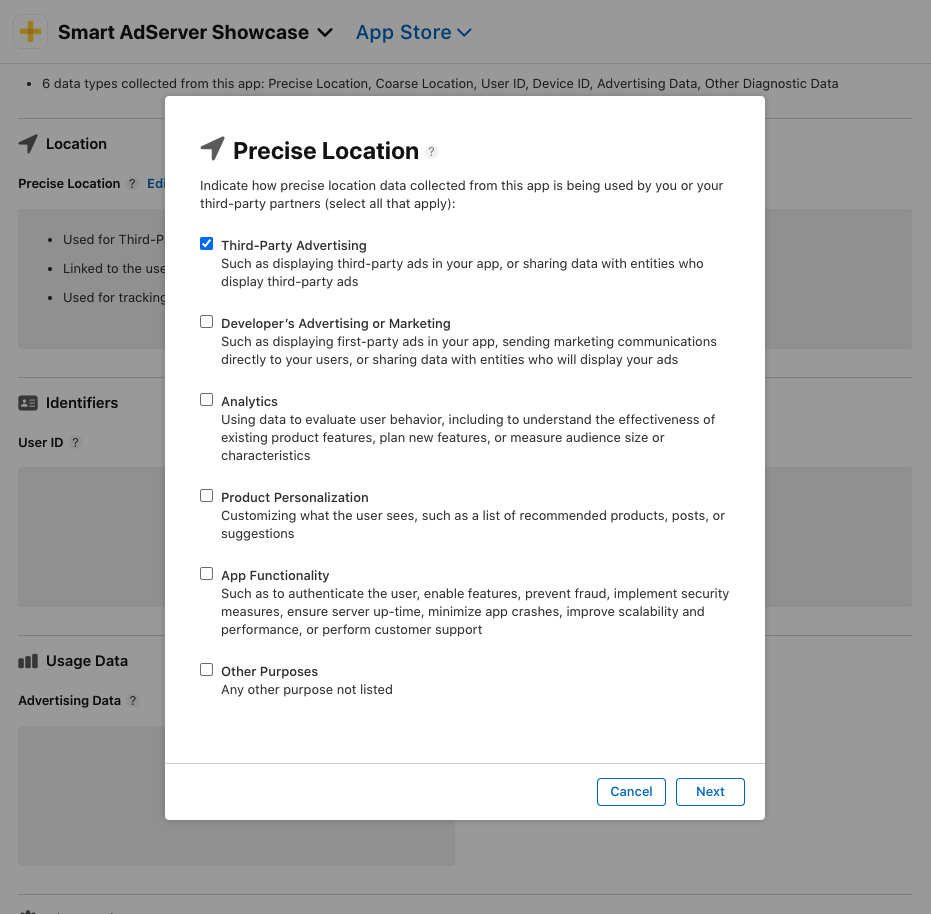
Click on Set up Precise Location.
You will first be prompted with a screen asking you the purpose of this data collection. Choose Third Party Advertising.
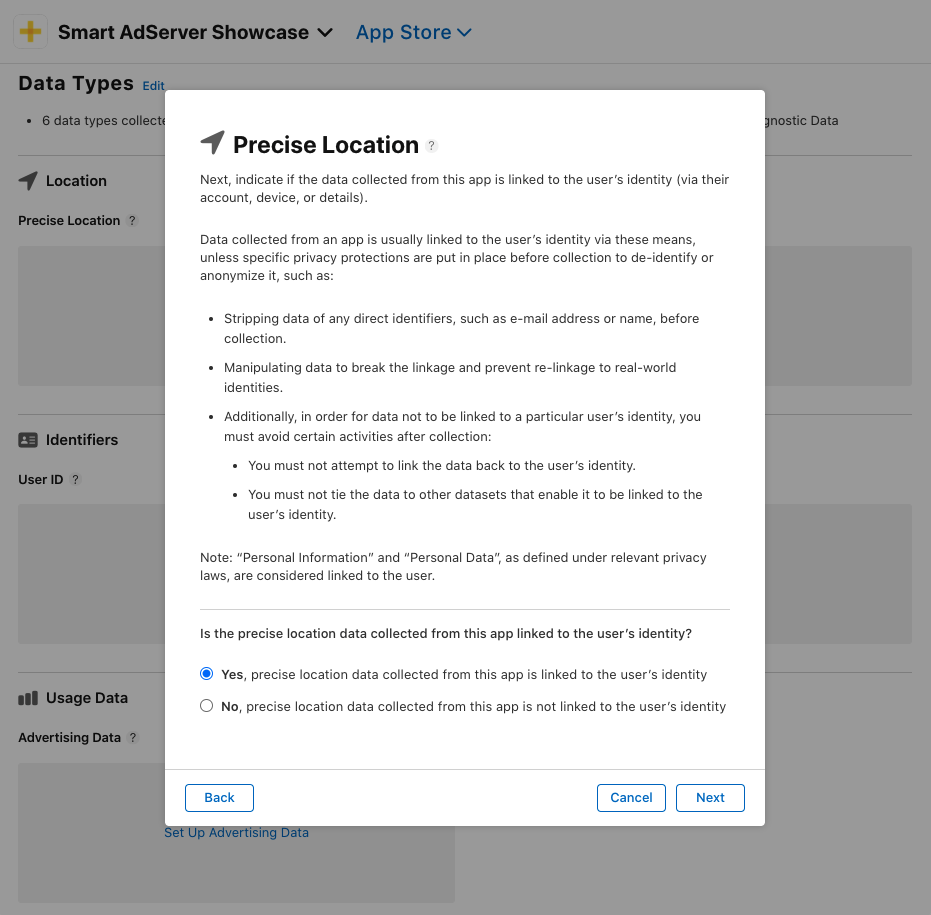
On the next screen, choose Yes, precise location data collected from this app is linked to the user’s identity.
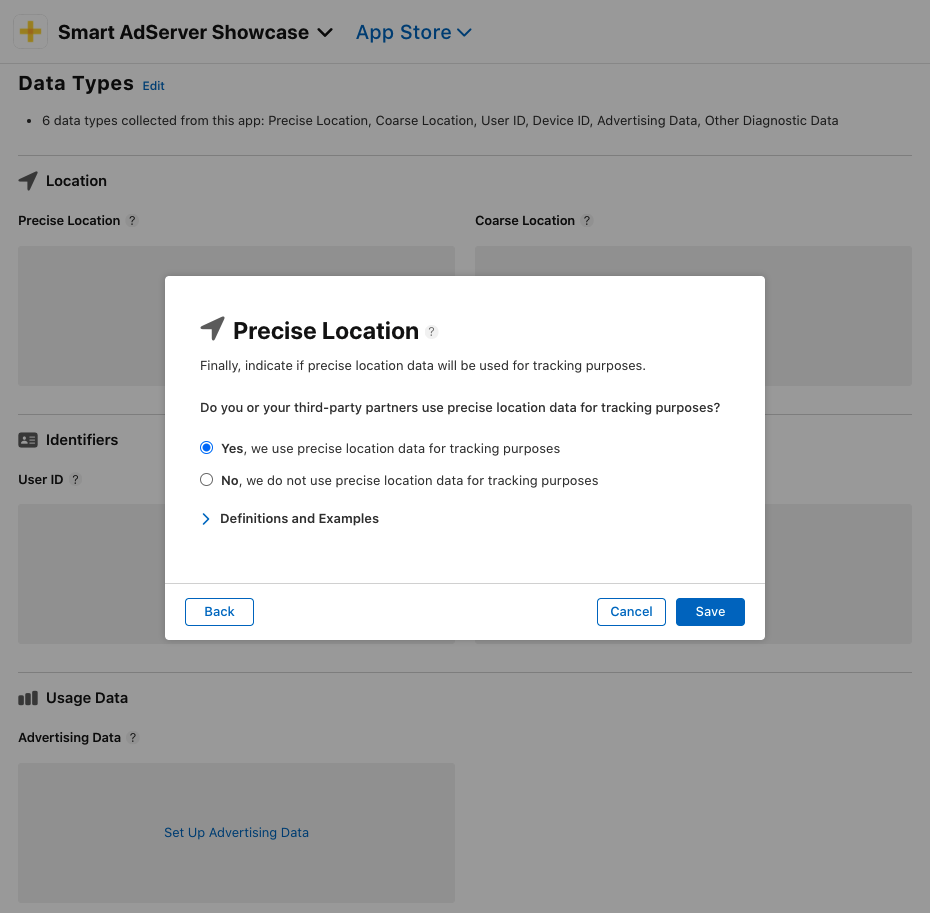
On the next screen, choose Yes, we use precise location data for tracking puposes.
Step 5: ‘Coarse location’ setup
Click on Set up Coarse location.
You will first be prompted with a screen asking you the purpose of this data collection. Choose Third Party Advertising and Analytics.
On the next screen, choose Yes, coarse location data collected from this app is linked to the user’s identity.
On the next screen, choose Yes, we use coarse location data for tracking puposes.
Step 6: ‘User ID’ setup (if applicable)
Click on Set up User ID.
You will first be prompted with a screen asking you the purpose of this data collection. Choose Third Party Advertising.
On the next screen, choose Yes, user IDs collected from this app is linked to the user’s identity.
On the next screen, choose Yes, we use user IDs for tracking puposes.
Step 7: ‘Device ID’ setup
Click on Set up User ID.
You will first be prompted with a screen asking you the purpose of this data collection. Choose Third Party Advertising.
On the next screen, choose Yes, device IDs collected from this app is linked to the user’s identity.
On the next screen, choose Yes, we use device IDs for tracking puposes.
Step 8: ‘Advertising Data’ setup
Click on Set up Advertising Data.
You will first be prompted with a screen asking you the purpose of this data collection. Choose Third Party Advertising.
On the next screen, choose Yes, advertising data collected from this app is linked to the user’s identity.
On the next screen, choose Yes, we use advertising data for tracking puposes.
Step 9: ‘Advertising Data’ setup
Click on Set up Advertising Data.
You will first be prompted with a screen asking you the purpose of this data collection. Choose Analytics.
On the next screen, choose Yes, other diagnostic data collected from this app is linked to the user’s identity.
On the next screen, choose No, we do not use advertising data for tracking puposes.
Step 10: publishing
You can now publish your privacy policy and data usage summary using the Publish button on the top right of the page.